You do not need to read this first. Do these five things in your first ten minutes; come back to a chapter when a screen surprises you.
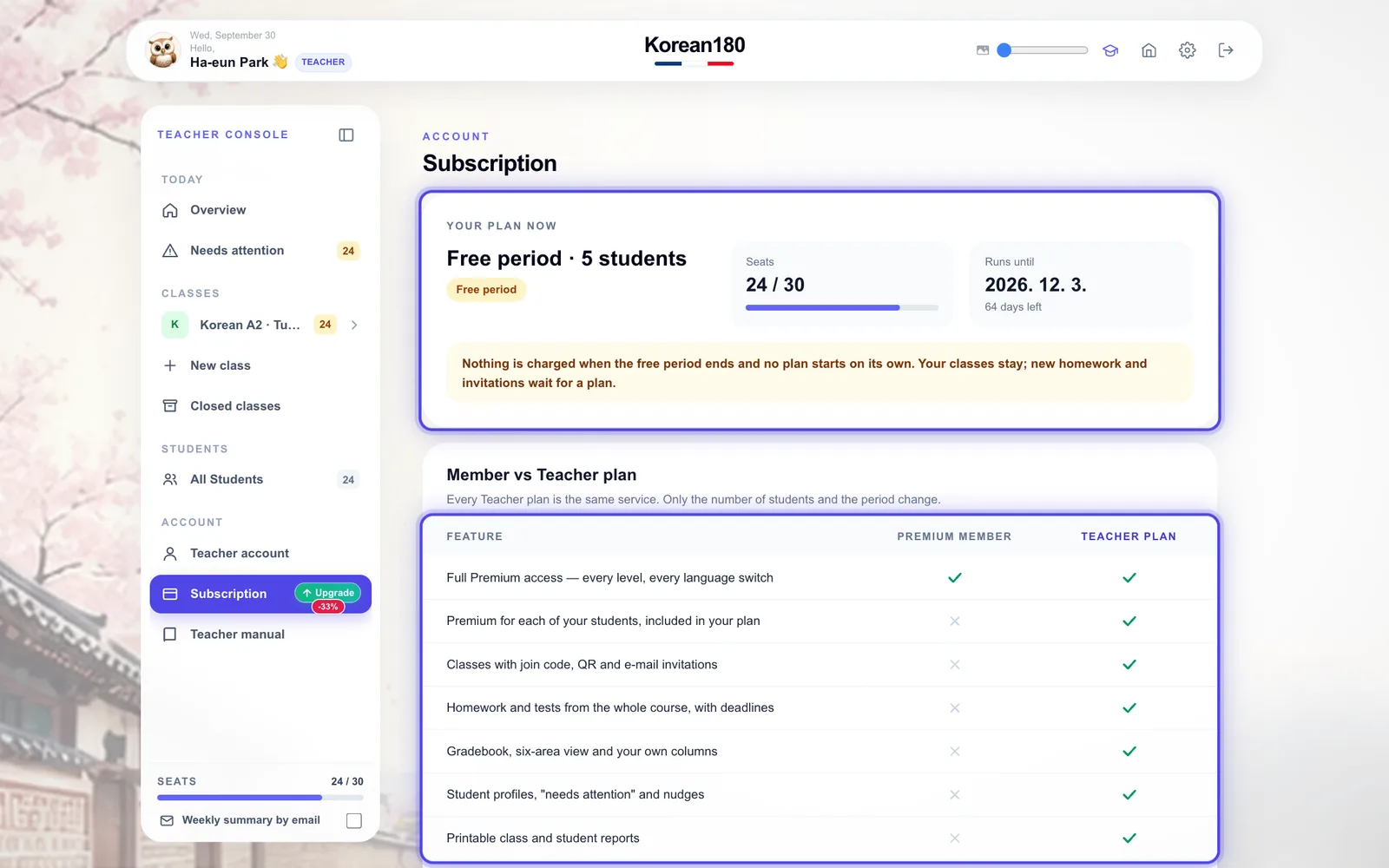
1Your free months are already running. They started when your account was approved: 180 days, up to 5 students, no card. Nothing is charged and nothing starts on its own.
2Create a class. In the side menu choose "New class", type a name, pick a level, and press "Create class".
3Invite students. On the same page open "Invite new students" and paste addresses — or share the join code and QR from the class Students page.
4Set one piece of homework. Hover your class in the menu and choose "New work". Pick a word set or a grammar topic and a due date.
5Check "Overview" tomorrow. Students who need you are listed first, with the reason and a button to act.
That is a class running. Everything else is a way of seeing what your students do next.
Chapter 01
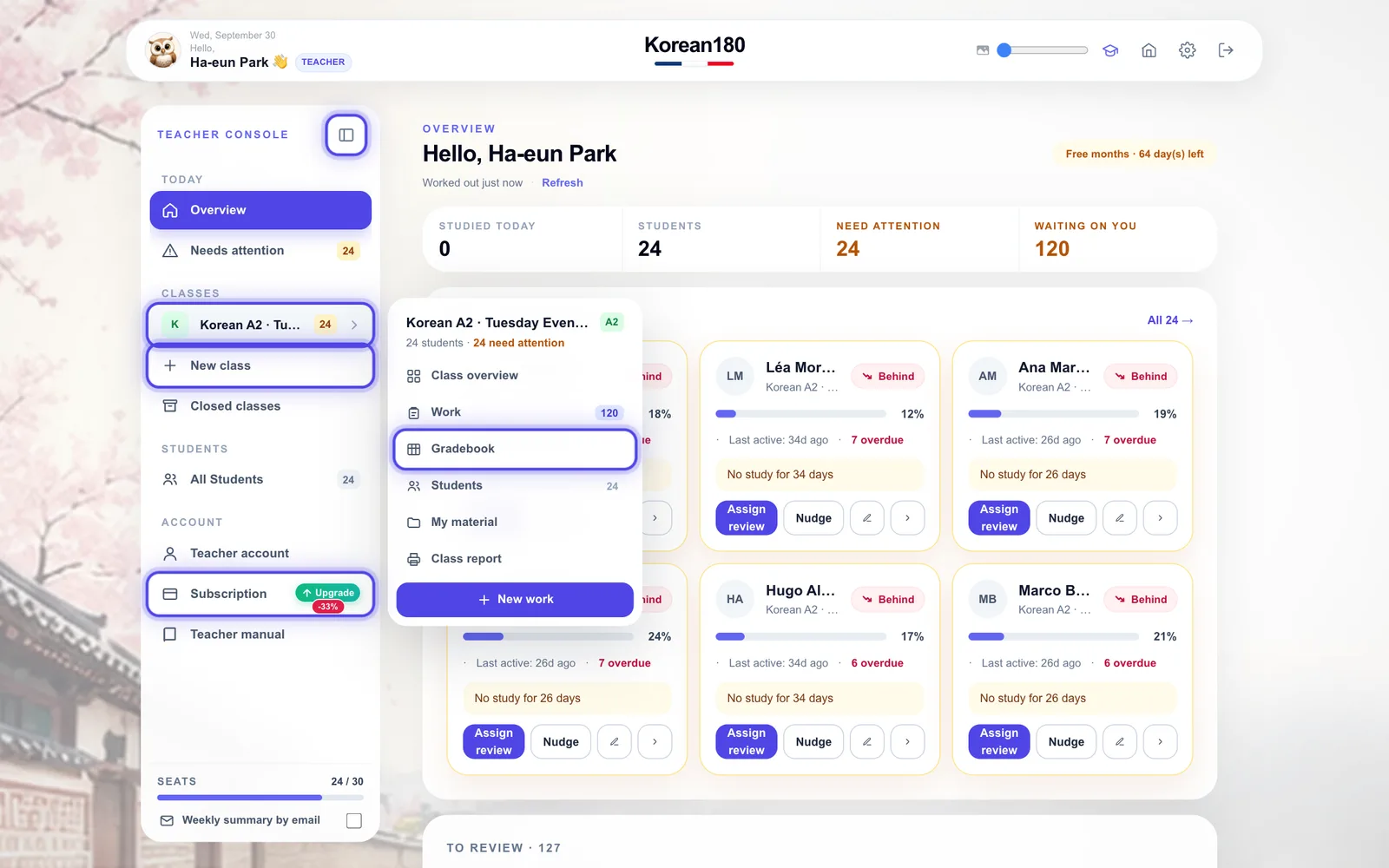
The side menu
Reach every teacher page from one menu that stays at the left of the screen.
12345
1Press the panel button (or the [ key) to fold the menu to icons and back.
2Hover a class to see its pages. Click it to open them under the name; click again to fold them.
3Choose a page from the panel: Class overview, Work, Gradebook, Students, My material or Class report.
4"New class" opens its own page for creating a class.
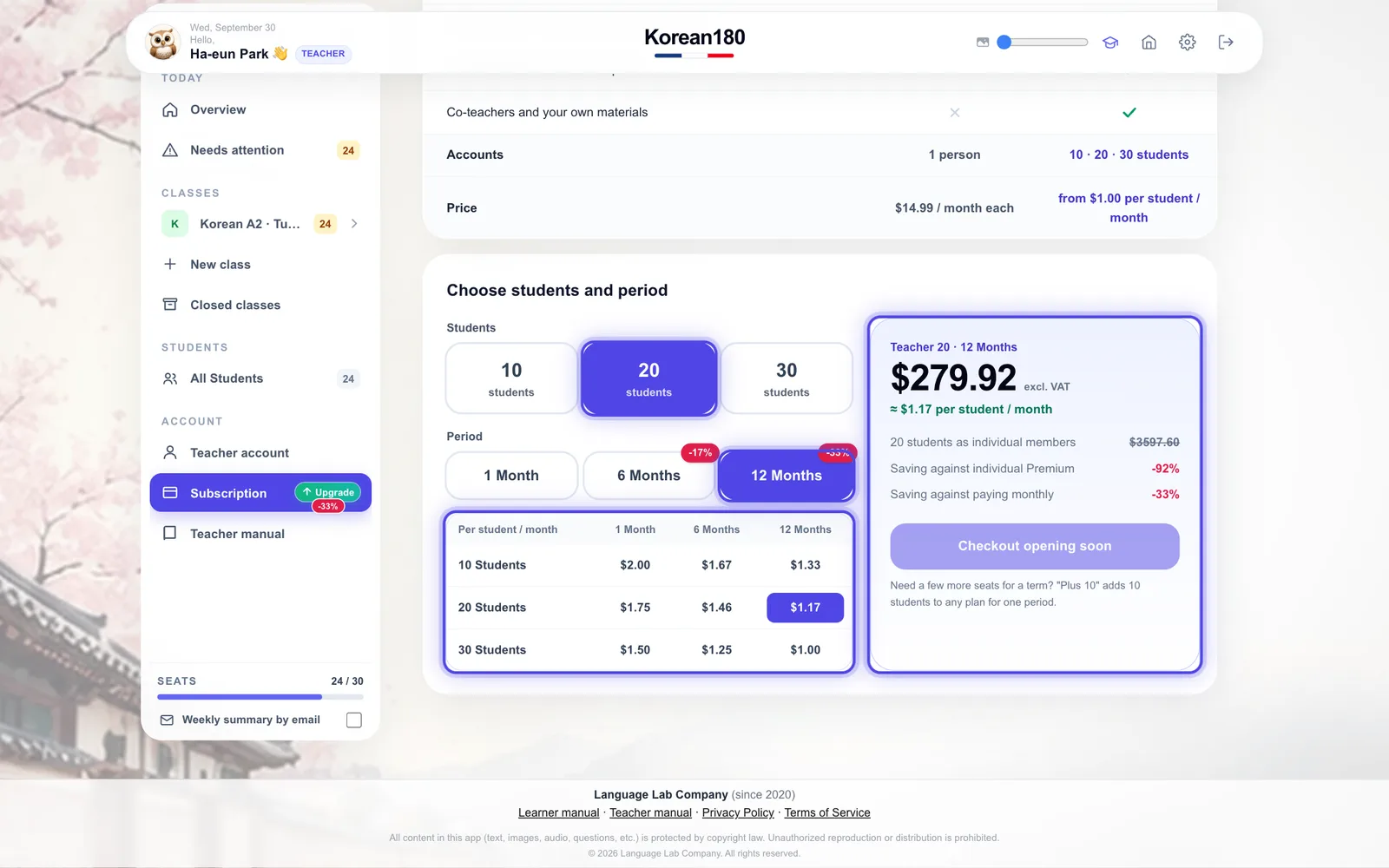
5"Subscription" shows your plan; the green sticker marks what an upgrade would save.
What you will seeThe page you chose, with the same name at its top as in the menu.
TipOn a phone the menu opens from the "Menu" button at the top of the page and closes when you pick a page.
Common mistakeLooking for class pages on the Overview: they are in the menu under each class.
Chapter 02
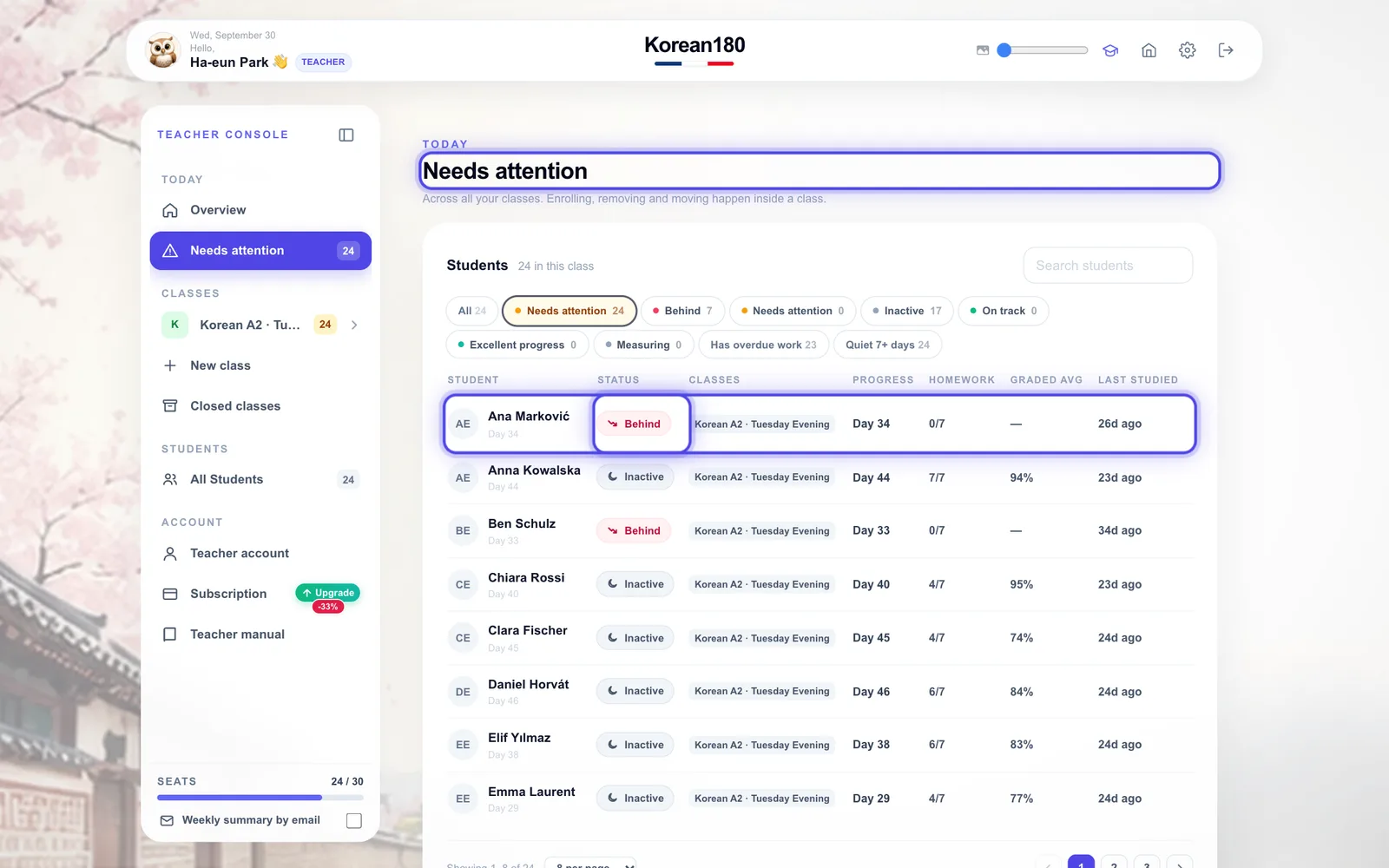
Overview: your day
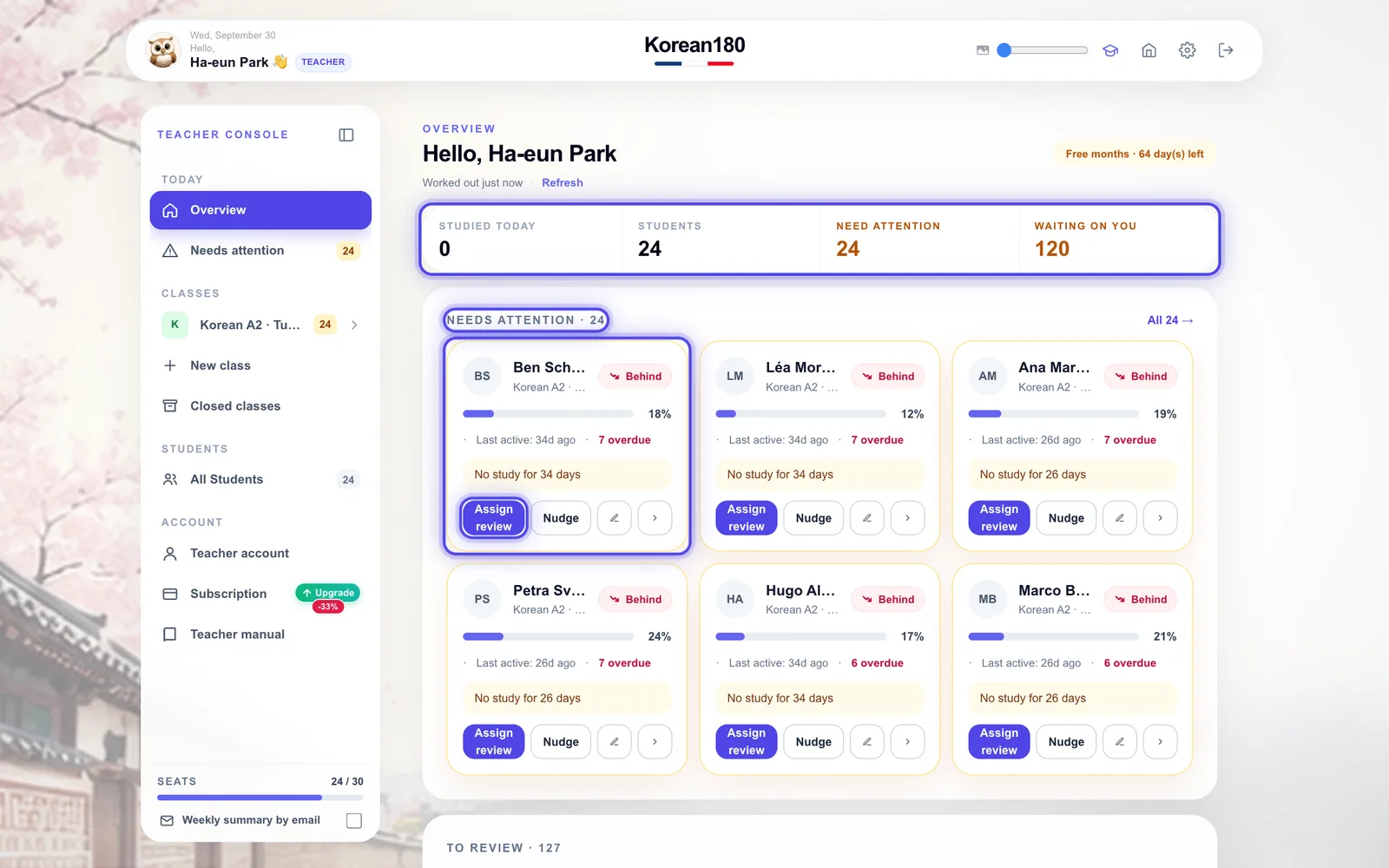
See in one screen who needs you and what is waiting.
1234
1Read the strip: studied today, students, need attention, waiting on you.
2"Needs attention" lists the students who are behind, slipping or inactive — worst first.
3Each card says why in one line: no study for days, overdue work, a falling score.
4Act from the card: "Assign review", "Nudge", add a note, or open the profile.
What you will seeBelow the cards: "To review" (unmarked work, overdue, due in two days) and "Upcoming".
TipPress "Refresh" under your name after a lesson; the figures are worked out on load.
Common mistakeReading "Studied today: 0" early in the morning as a problem — it restarts at midnight.
Chapter 03
Create a class
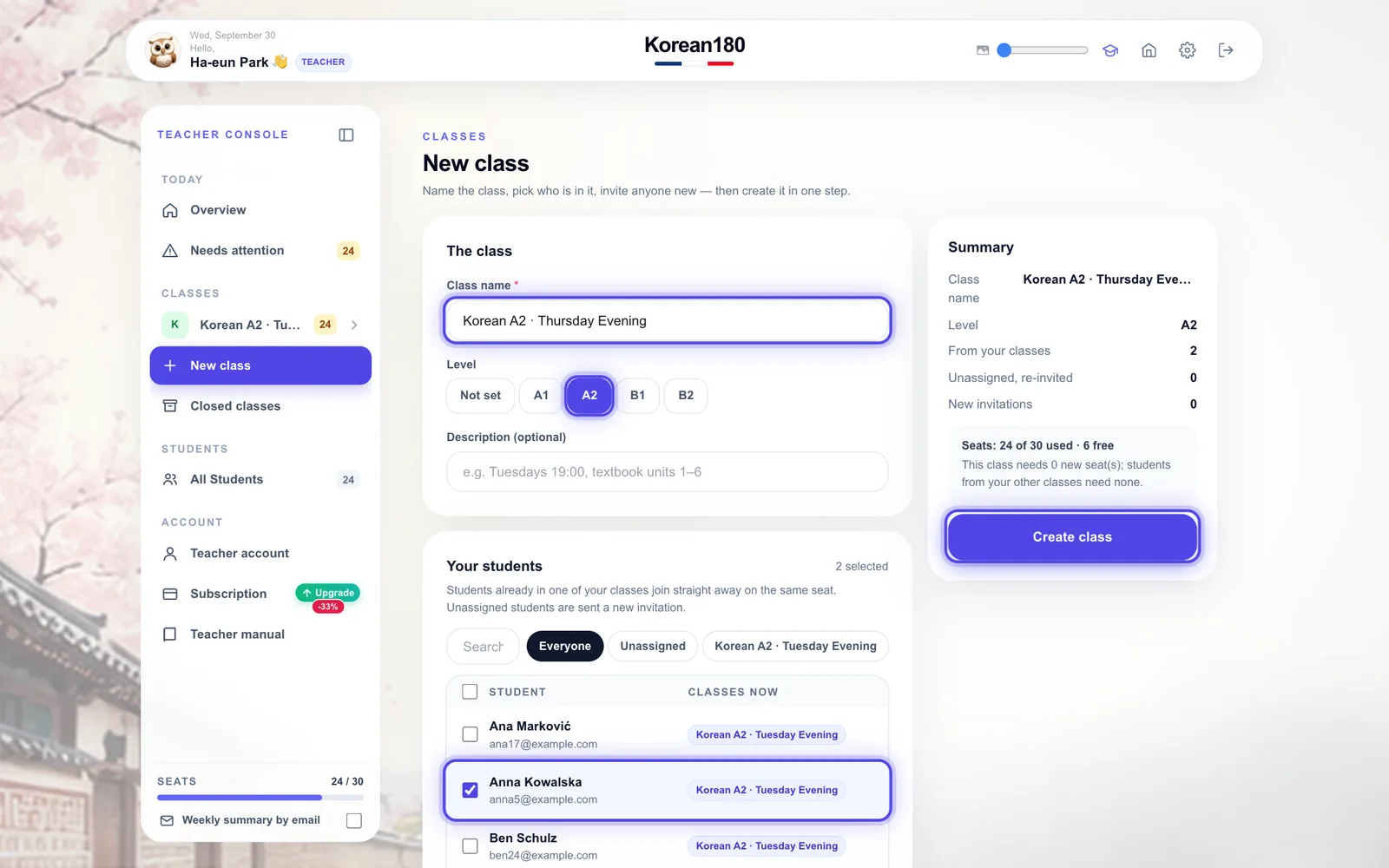
Name a class, choose who is in it and invite anyone new — in one step.
1235
1Type the class name.
2Pick a level, or leave it unset.
3Tick students from your other classes. "Unassigned" marks students who are in none of your classes now.
4Open "Invite new students" to add addresses or paste a class list. It is folded each time you open the page.
5Check the summary and seats, then press "Create class".
What you will seeA confirmation with the join code, and buttons to open the class or its QR code.
TipStudents from your other classes join at once on the same seat; unassigned and new students get an invitation.
Common mistakeInviting more new students than you have free seats — the summary shows how many seats this class needs.
Chapter 04
Invite students
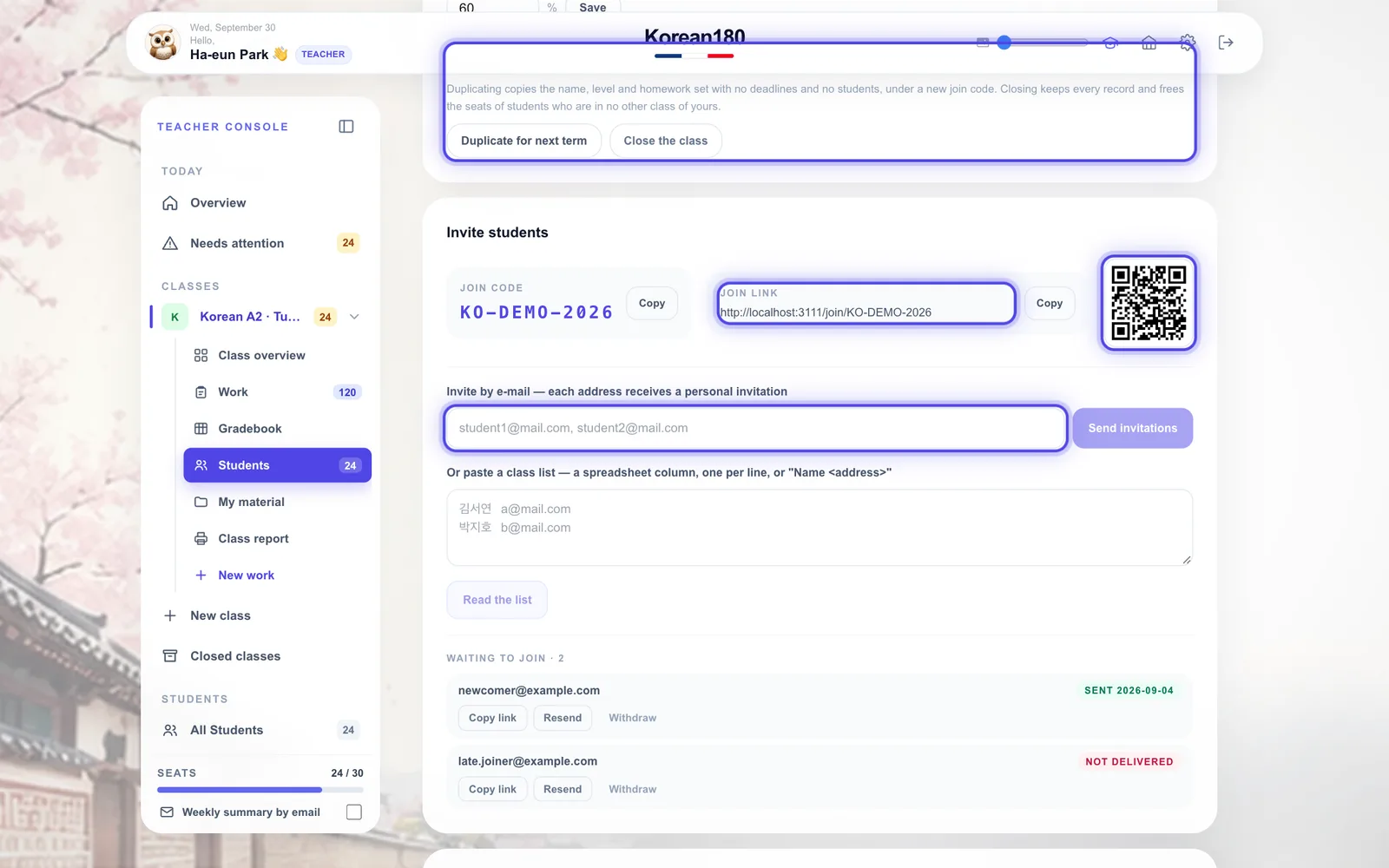
Bring students into an existing class.
1234
1Share the join code; students type it in the app.
2Or copy the join link.
3Or show or print the QR code in the classroom.
4Or send personal invitations: type addresses, or paste a list with names.
What you will seeEach invitation in the roster with its status: invited, joined, or bounced.
TipNames pasted with the addresses become the names on your roster.
Common mistakeSending the join link to a whole group by e-mail — use personal invitations so each seat goes to the right person.
Chapter 05
Class overview
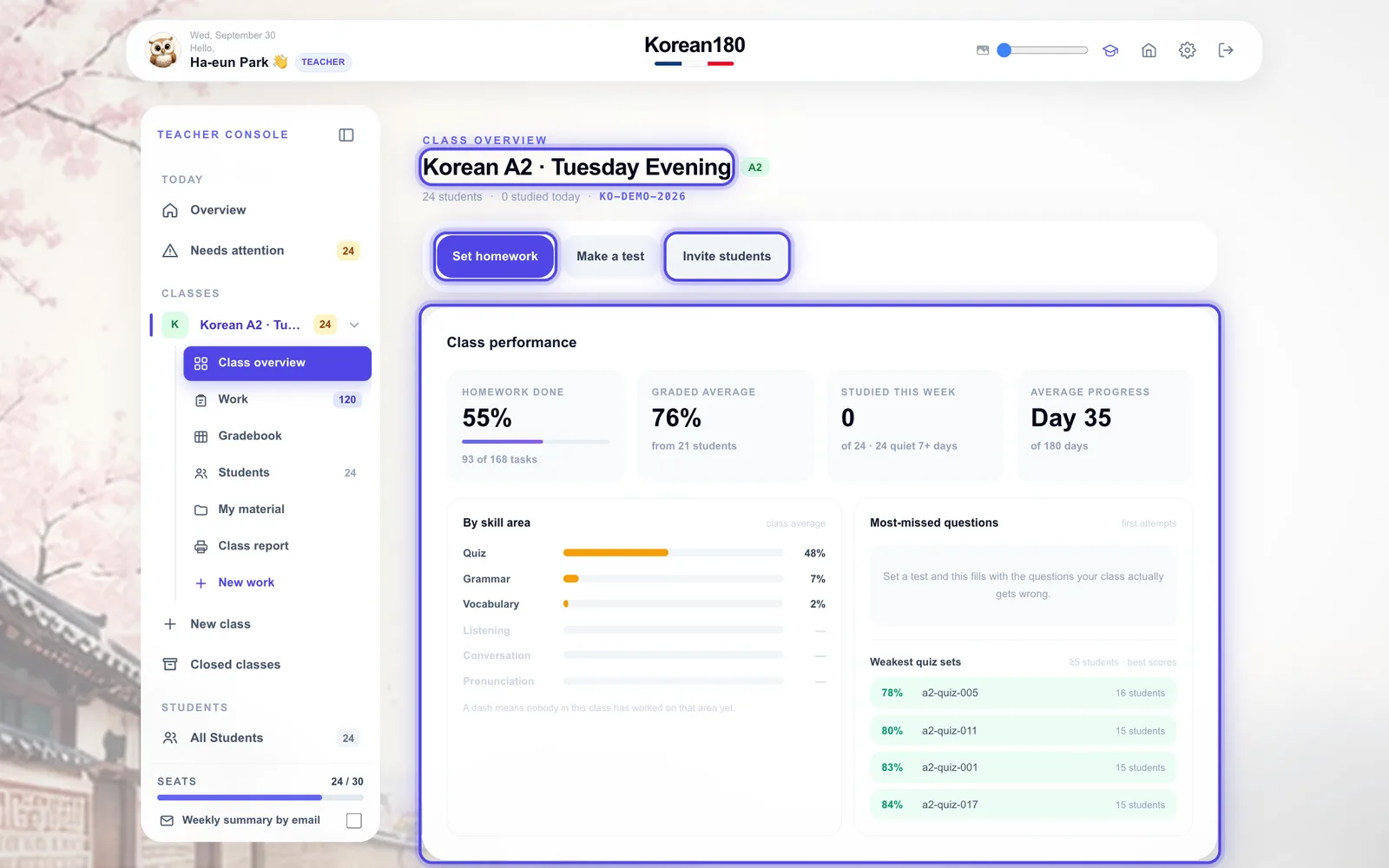
Read how one class is doing and start the next task.
1234
1The top line is the menu page and the class; the code under it is the join code.
2Set homework or make a test from the buttons.
3Read the class performance: homework done, graded average, activity and skill areas.
4Invite more students from here too.
What you will seeThe week, the students who need attention, and the roster with each student's status.
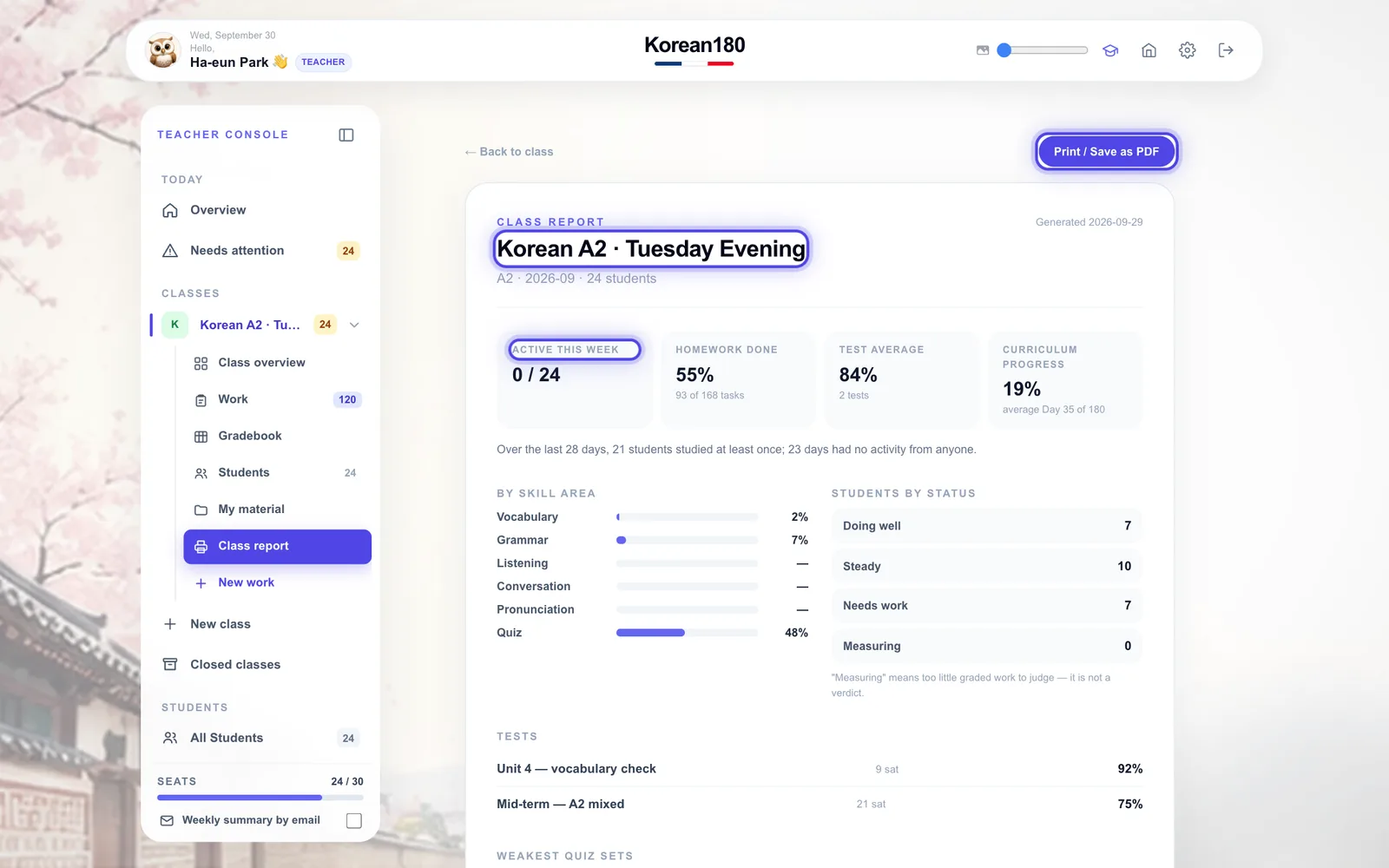
Tip"Class report" in the menu prints this class on one page for a manager or a parent evening.
Chapter 06
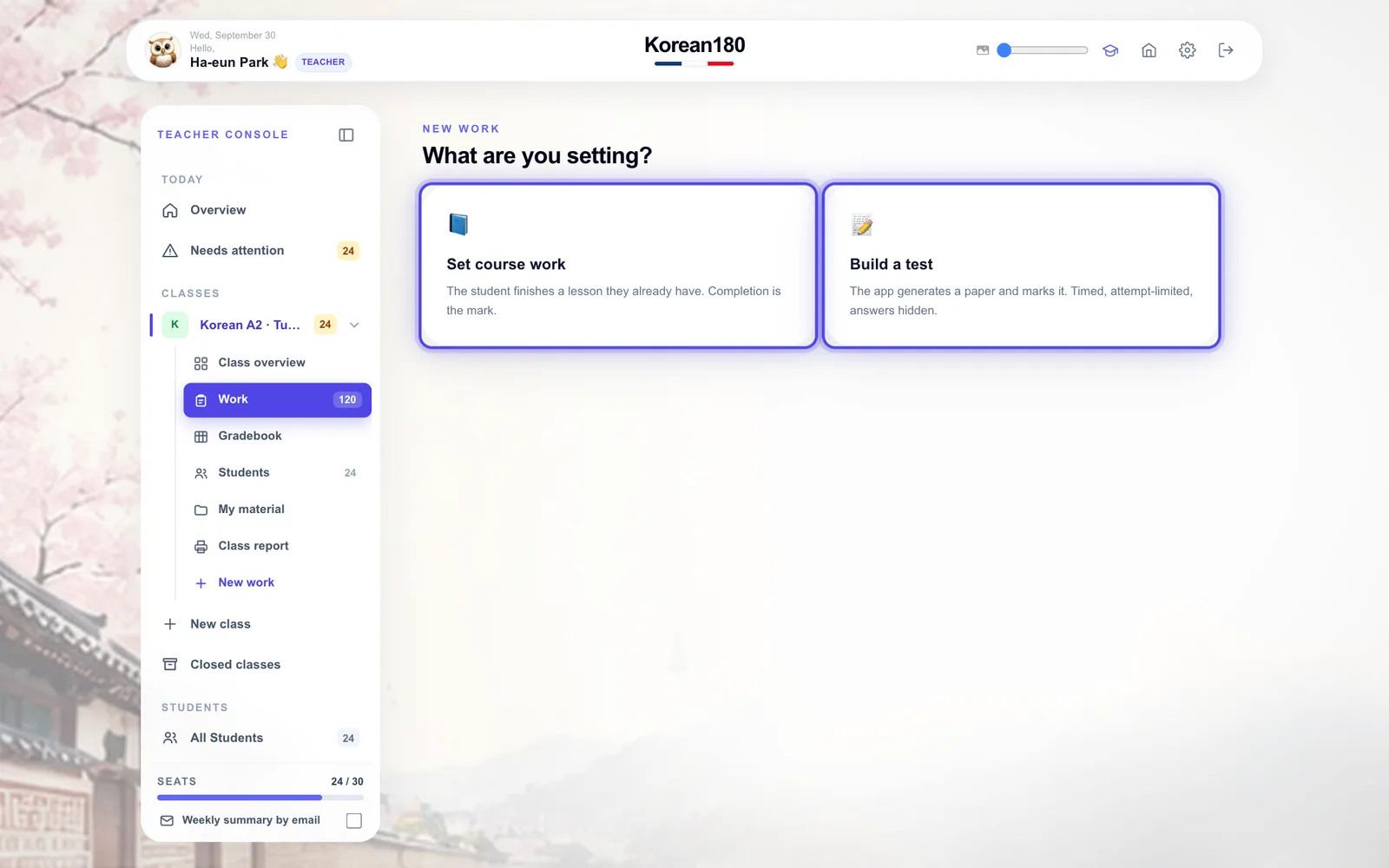
Set work or a test
Give students something to do, with a due date.
12
1"Set course work": a word set, grammar topic, listening, a day of the course or a game goal.
2"Build a test": mix questions from the course, set a time limit and attempts.
3Choose who gets it — the whole class or named students — and the dates.
What you will seeThe work in the class list, and a notice for each student it applies to.
TipScheduled work is announced on the day it opens, not when you write it.
Common mistakeLeaving the due date empty — without one, nothing ever counts as overdue.
Chapter 07
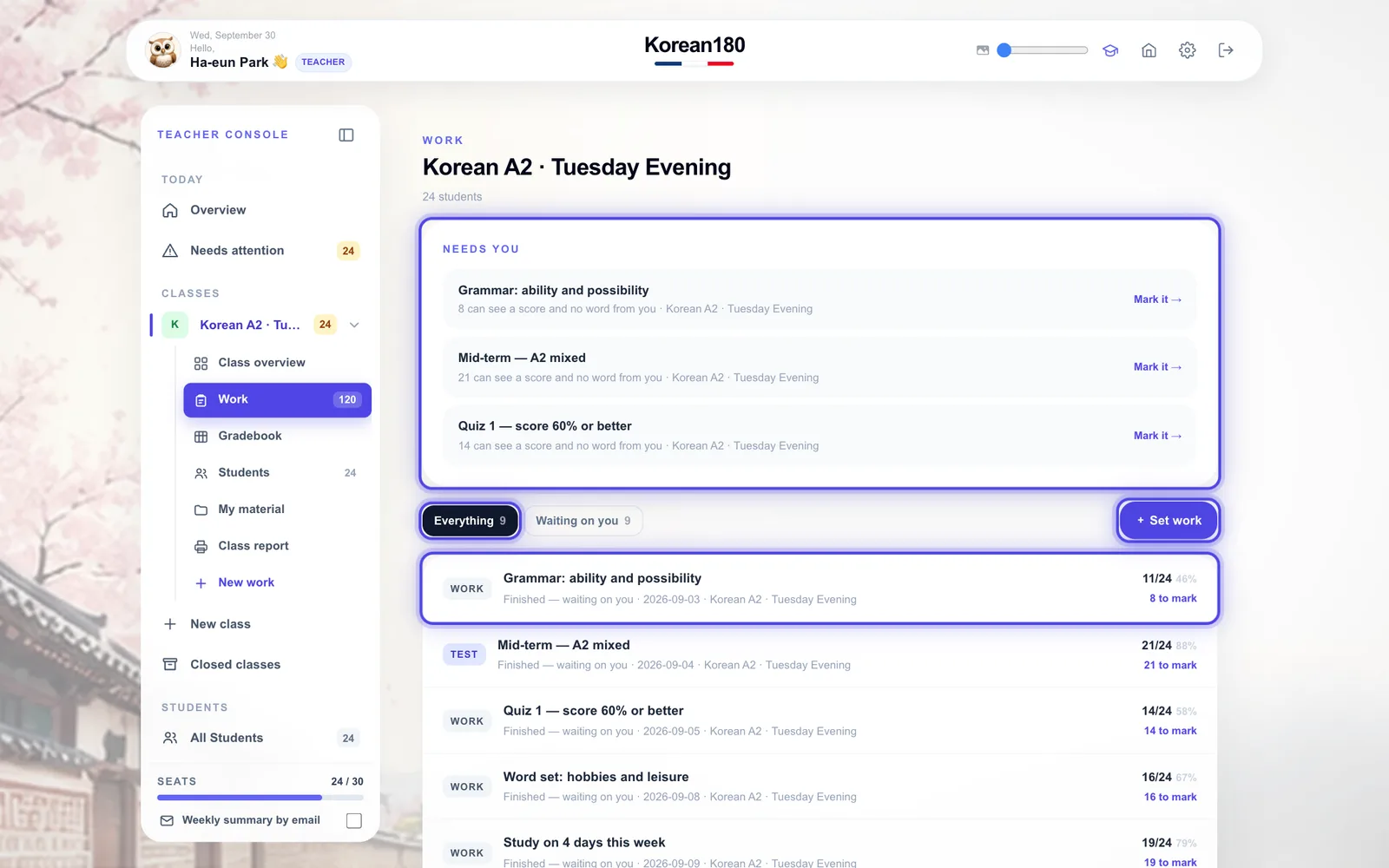
Work: what is waiting
Mark finished work and follow up what is late.
1234
1"Needs you" lists the work where students can see a score and no word from you.
2Switch between everything and "Waiting on you".
3"Set work" adds a new piece.
4Open a row to comment on each student's result or nudge those not finished.
What you will seeEach piece of work with how many finished and how many are still to mark.
TipSaved phrases make marking twenty papers quick.
Chapter 08
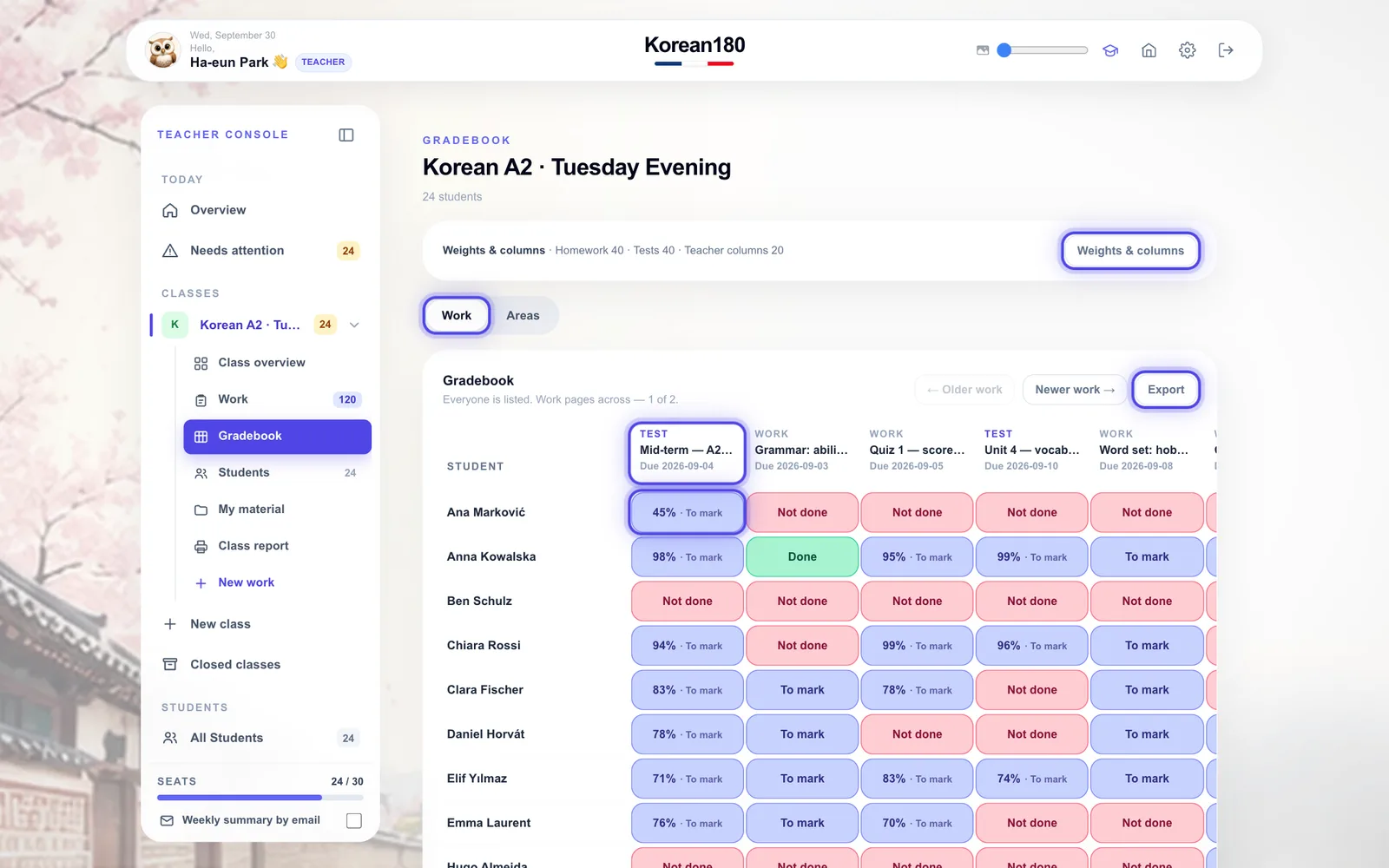
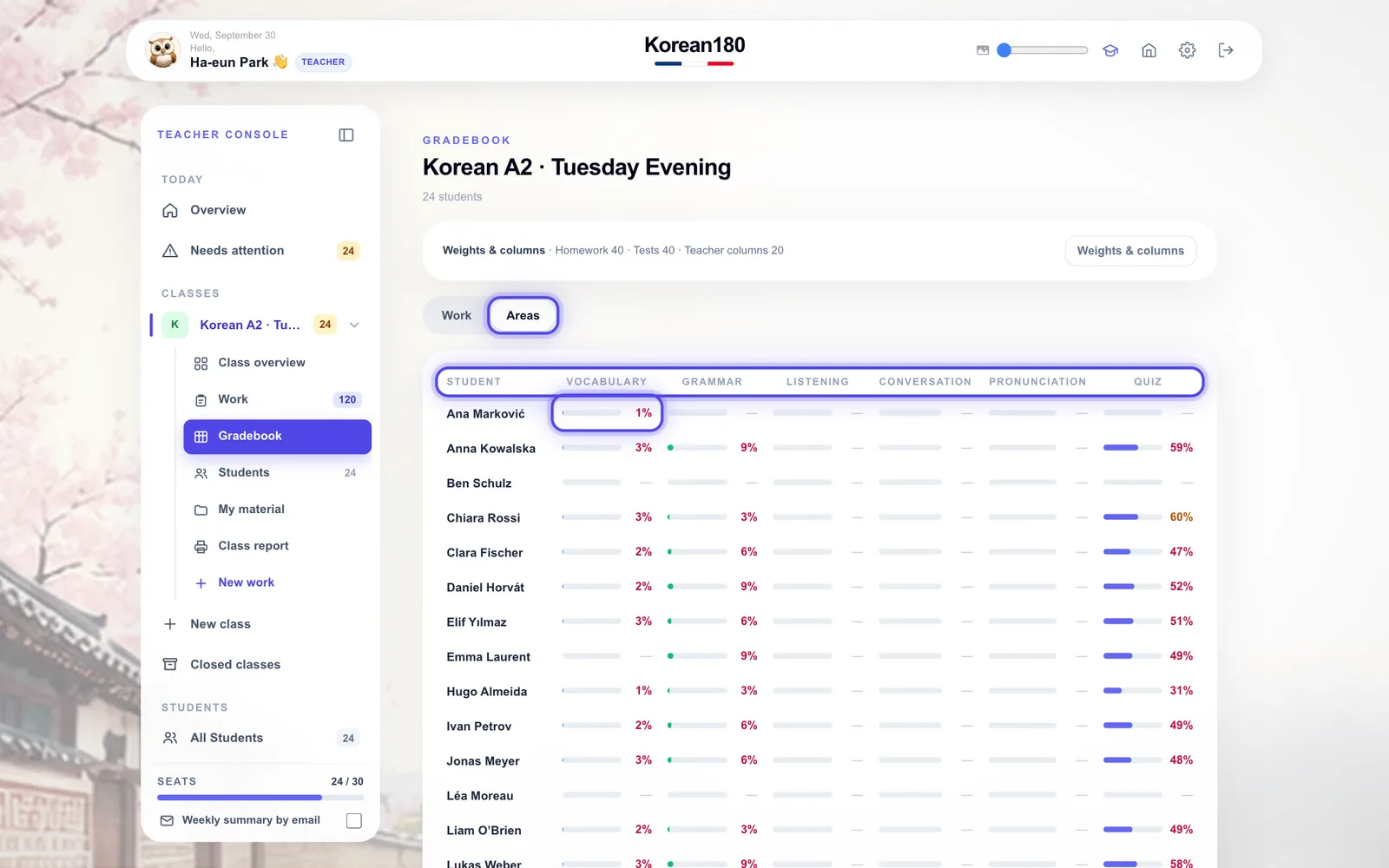
Gradebook
See every student against every piece of work.
12345
1Switch between "Work" and "Areas".
2Each cell says Done, To mark, Not done or a score; click it to comment or adjust.
3Column heads show the kind of work and its due date.
4"Weights & columns" sets how the reference total is weighed and adds your own columns.
5"Export" downloads the grid as a spreadsheet.
What you will seeColours by state, and a dark reference total per student.
Common mistakeTreating the reference total as a grade — it is a guide for you only.
Chapter 09
Gradebook: areas
See who is weak where across the six skill areas.
123
1Open "Areas".
2Red is below 60%, amber below 75%, a dash means not measured yet.
3The column heads are the six areas; the last row is the class average.
What you will seeEvery student × vocabulary, grammar, listening, conversation, pronunciation and quiz.
TipClick a name to open that student's profile.
Chapter 10
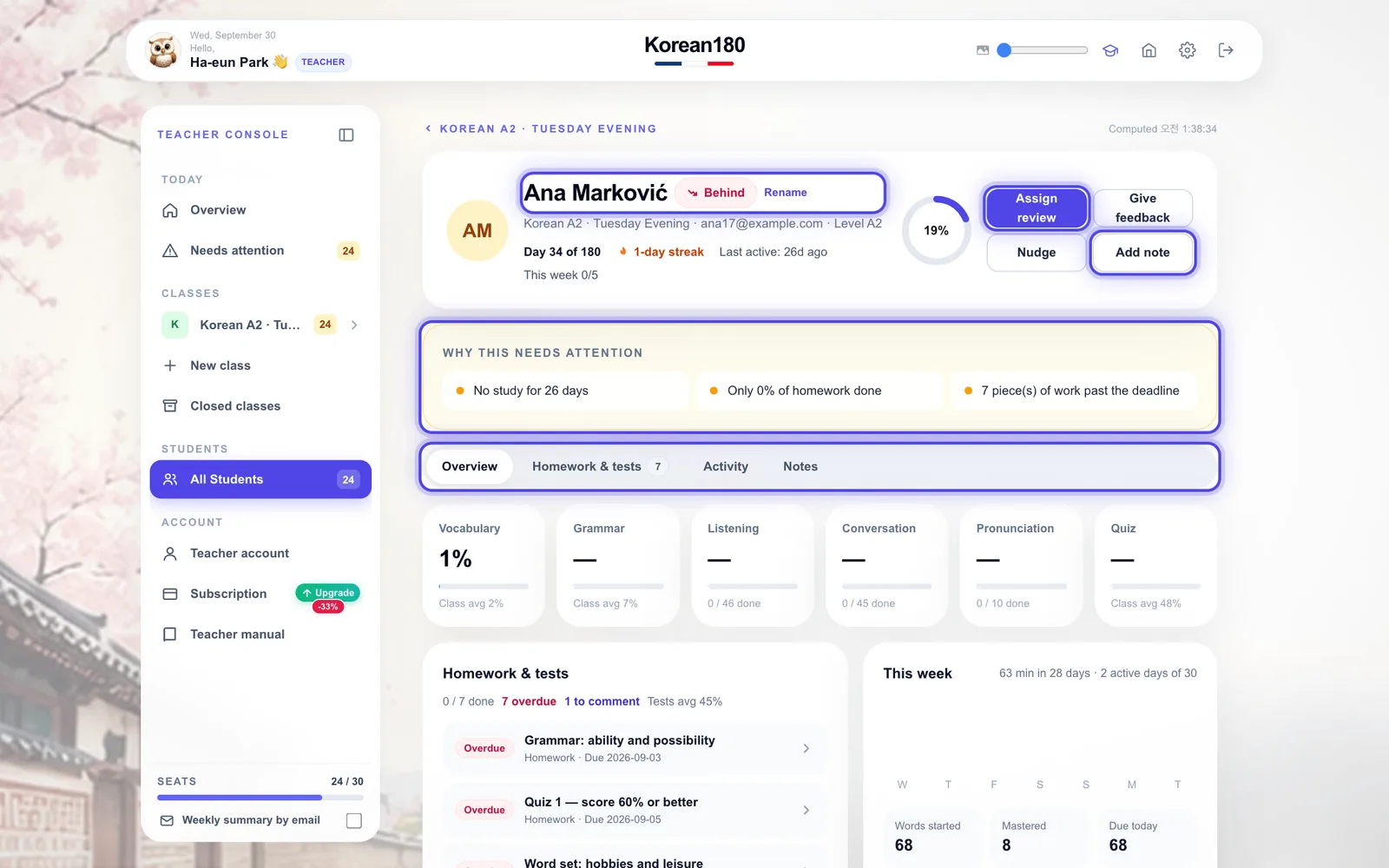
Student profile
Understand one student and act on it.
12345
1The header shows the day, the streak, the last activity and the status.
2"Assign review" opens new work already addressed to this student.
3"Why this needs attention" lists the reasons behind the status.